Add and edit customers
A customer needs a name. A phone number or email lets you send them estimates, invoices and reminders, and an address puts their jobs on your map.
-
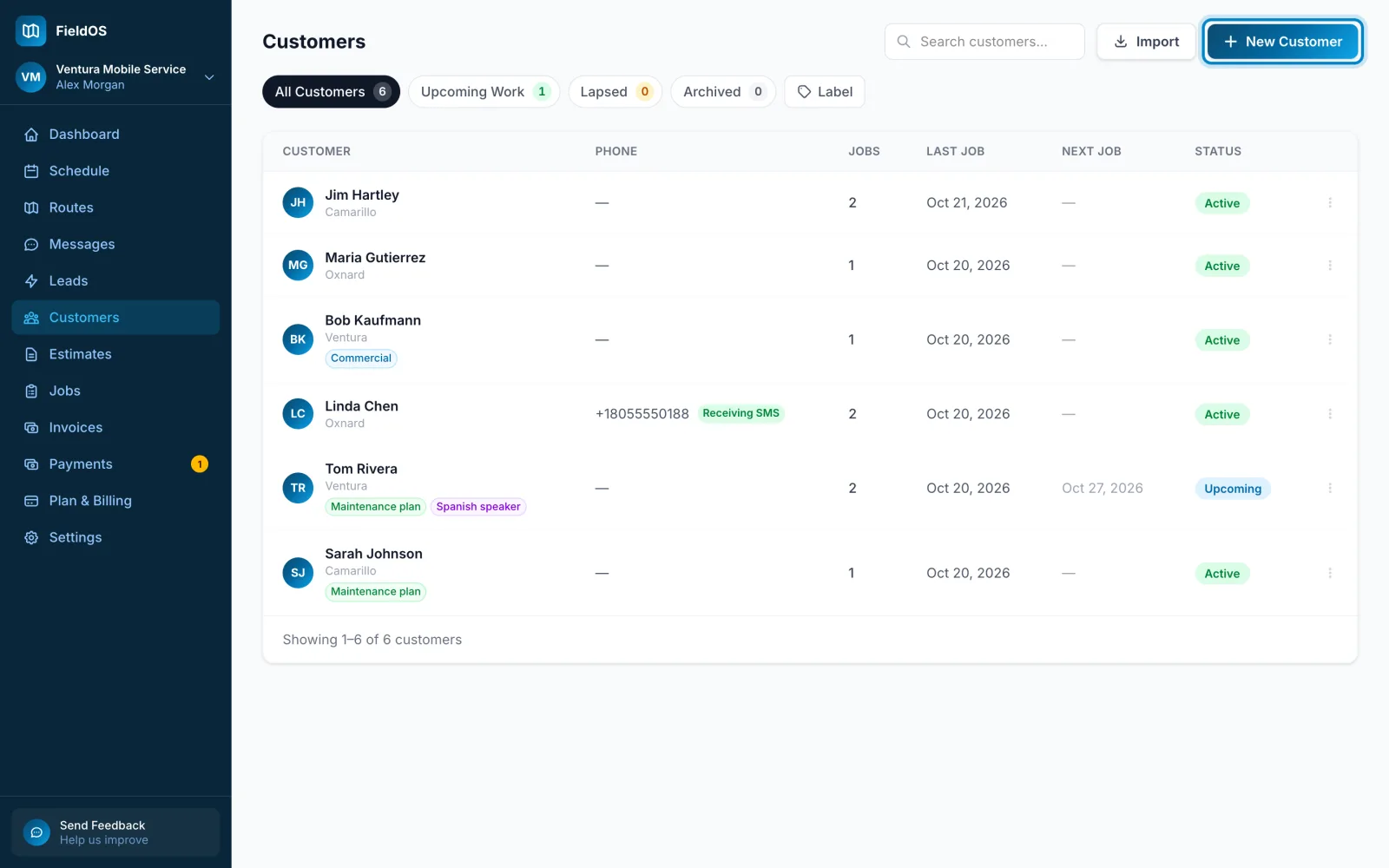
In the sidebar, click Customers, then New Customer.
-
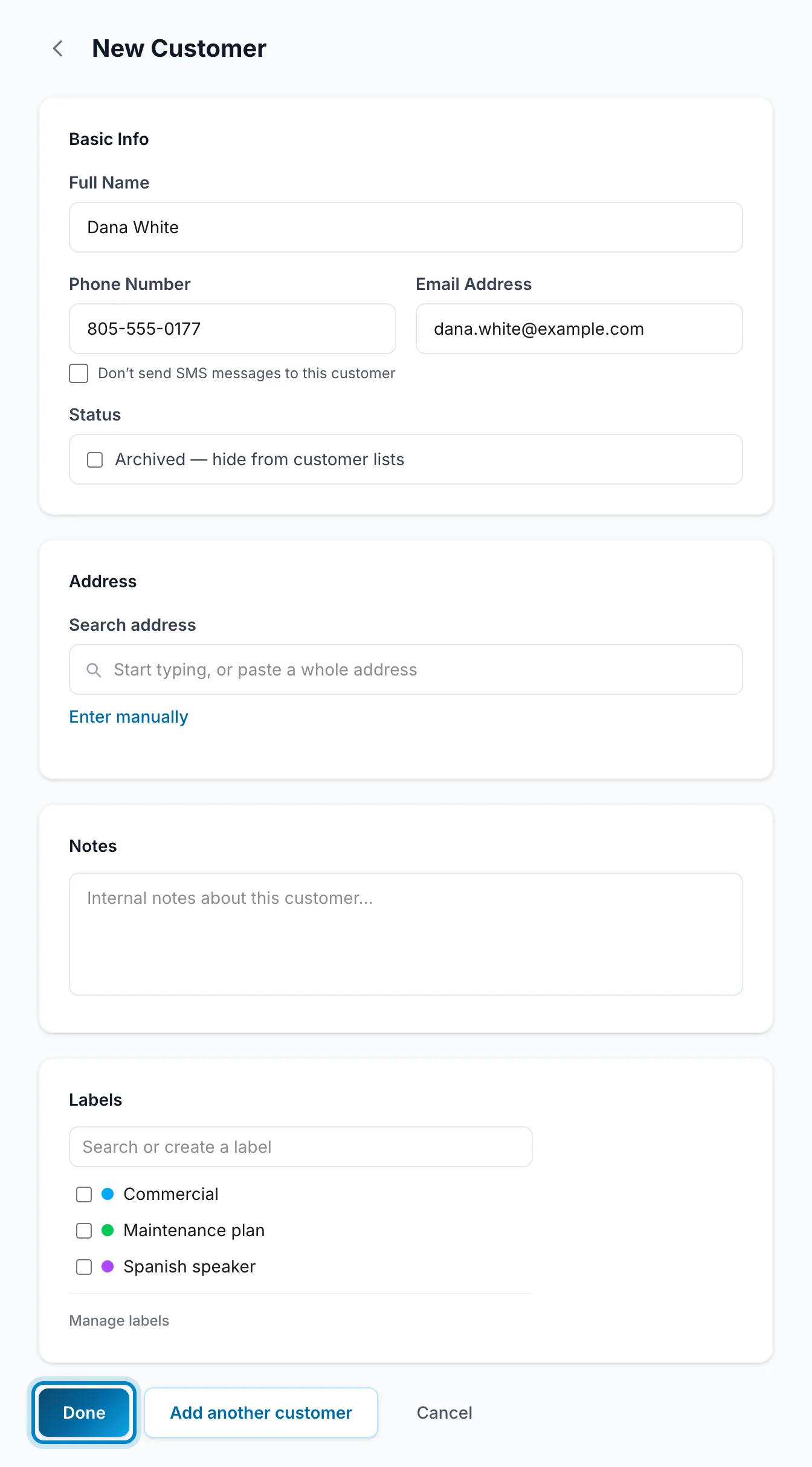
Fill in Full Name, Phone Number and Email Address.
-
Under Address, start typing and pick the address, or click Enter manually.
-
Click Done, or Add another customer to save and start the next one.
To change a customer, open them and click Edit, then Save Changes.
-
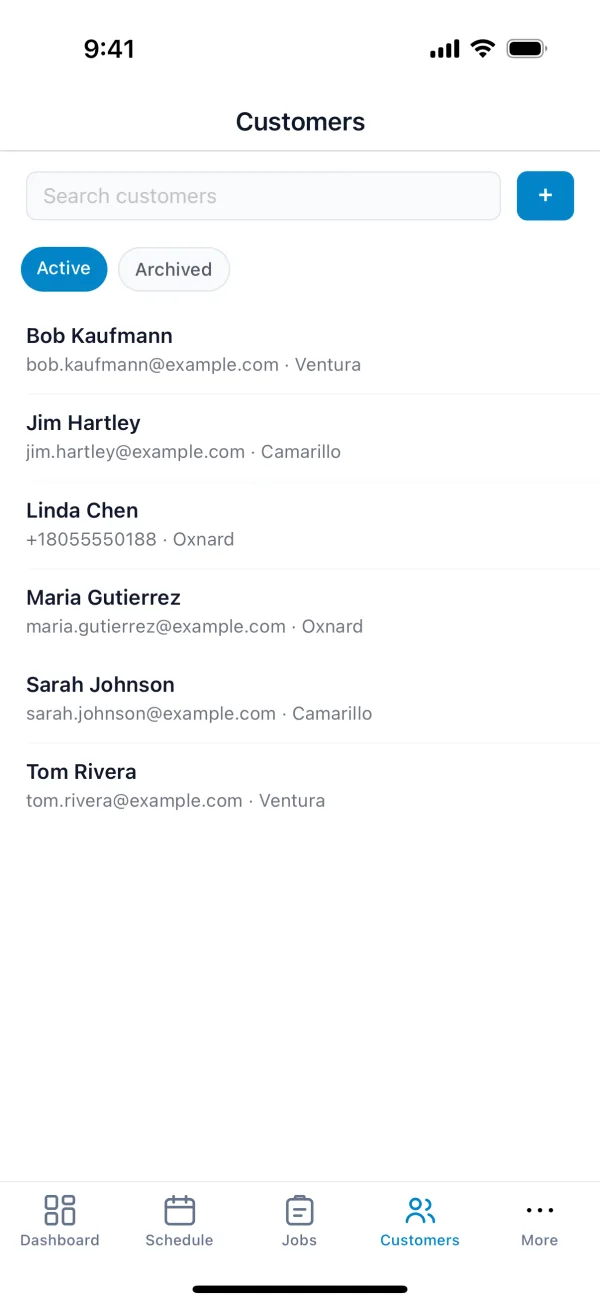
Tap Customers, then +.
-
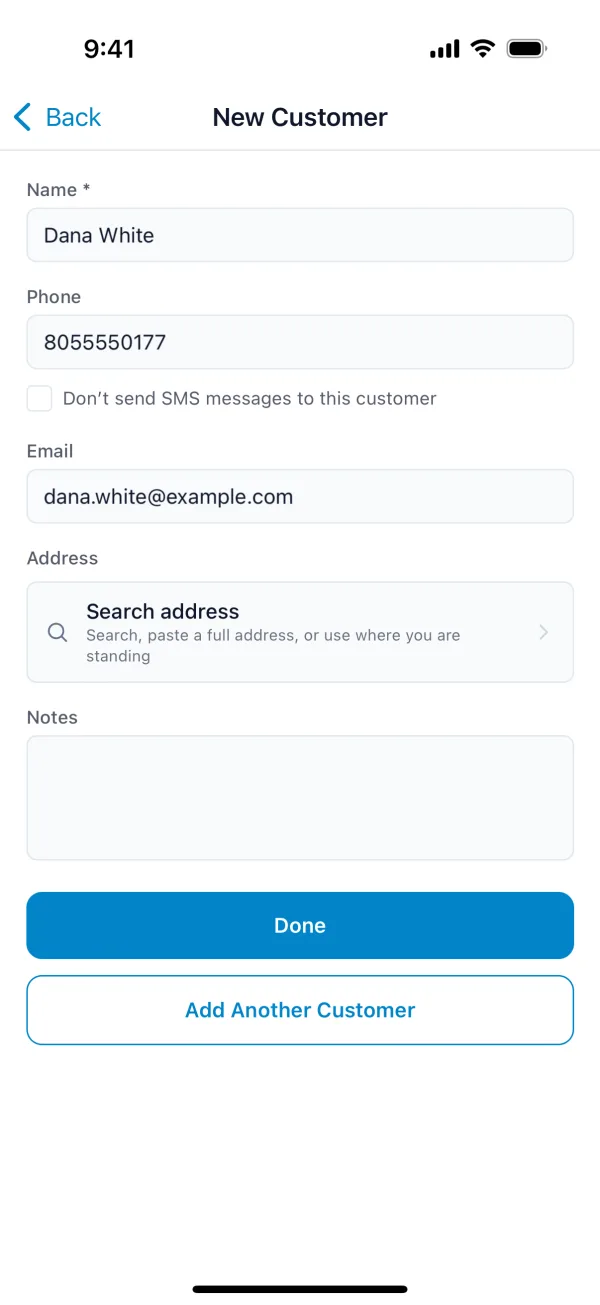
Fill in Name, Phone and Email, and tap Search address to add their address.
-
Tap Done, or Add Another Customer to save and start the next one.
To change a customer, open them and tap Edit. You don't need a connection: changes are saved on your phone and sent when you're back online.
Tick Don't send SMS messages to this customer if they don't want texts. To hide a customer you no longer work with, edit them and tick Archived. Their history stays.