Connect an AI assistant
FieldOS works with AI assistants that support MCP (Model Context Protocol), such as Claude and ChatGPT. Once connected, you can ask the assistant about your schedule, customers and jobs, and have it do the busywork for you. See Use an AI assistant.
The address to give your assistant is:
https://getfieldos.app/mcp
Claude (claude.ai)
- In Claude, go to Settings > Connectors > Add custom connector.
- Enter
https://getfieldos.app/mcpand add it. - Sign in to FieldOS when asked, and click Connect.
ChatGPT
- In ChatGPT, go to Settings > Connectors and add a custom connector.
- Name it FieldOS and enter
https://getfieldos.app/mcp. - Choose OAuth sign-in, sign in to FieldOS, and click Connect.
Custom connectors need a paid Claude or ChatGPT plan.
Approving the connection
Whichever assistant you use, FieldOS asks you to approve it. Check it's your business named on the screen, then click Connect.
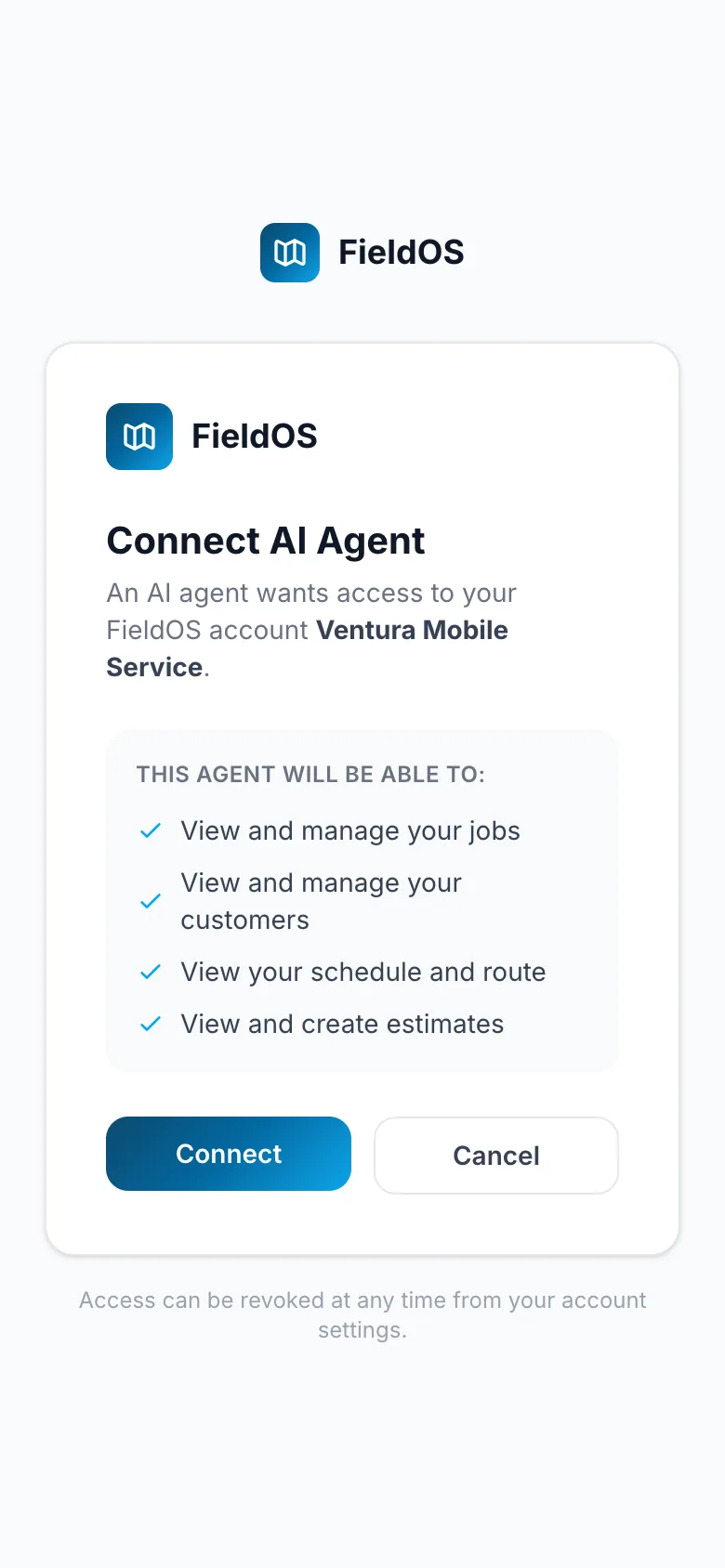
The assistant works as you, in your business only. It stays connected while you use it; after 90 days unused, you'll be asked to sign in again.
Disconnecting
To stop an assistant using FieldOS, remove the FieldOS connector in that assistant's settings. FieldOS doesn't have its own list of connected assistants yet.
Claude Desktop, Claude Code and other MCP apps connect the same way: give them
https://getfieldos.app/mcp and approve the sign-in.