Your schedule
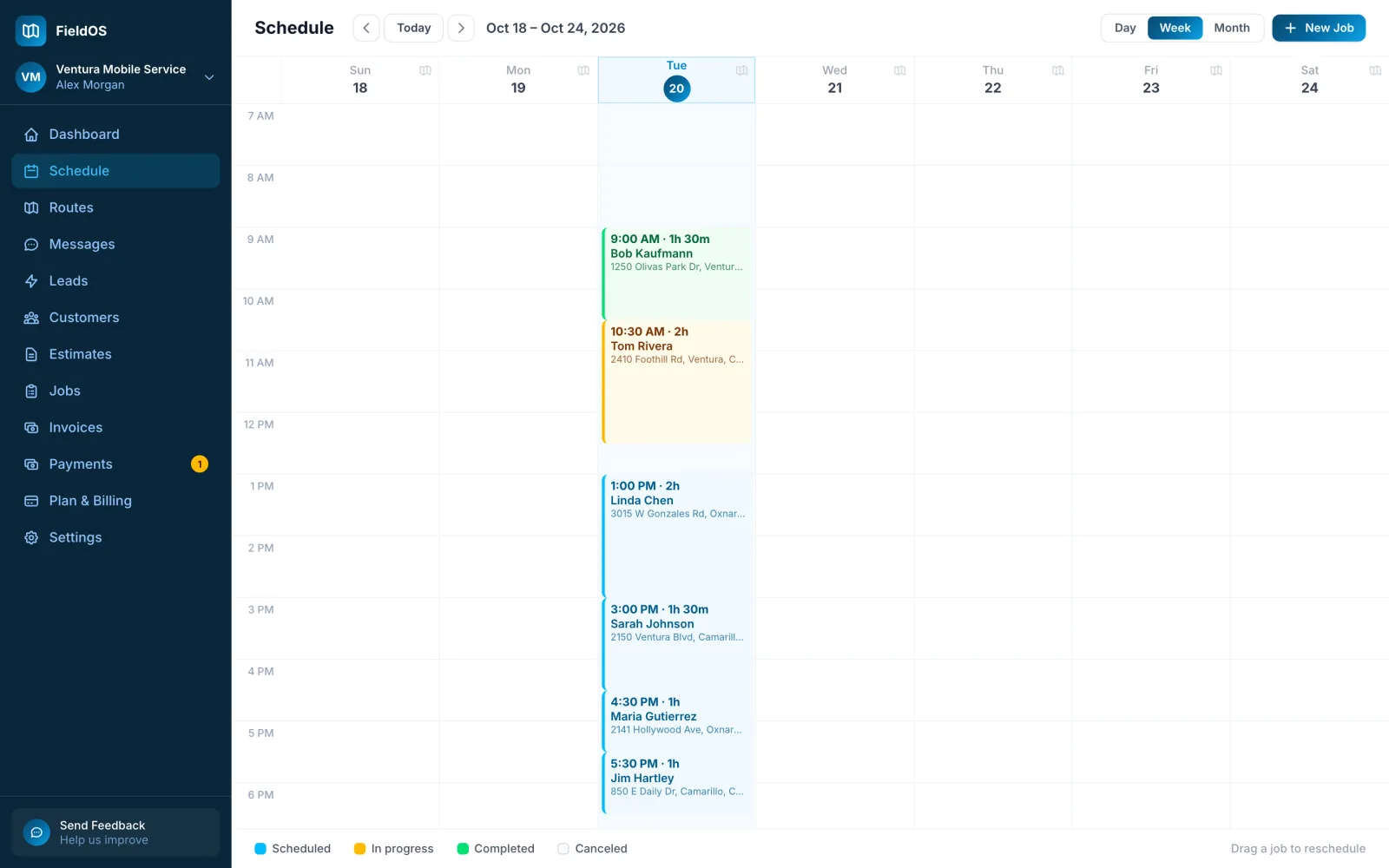
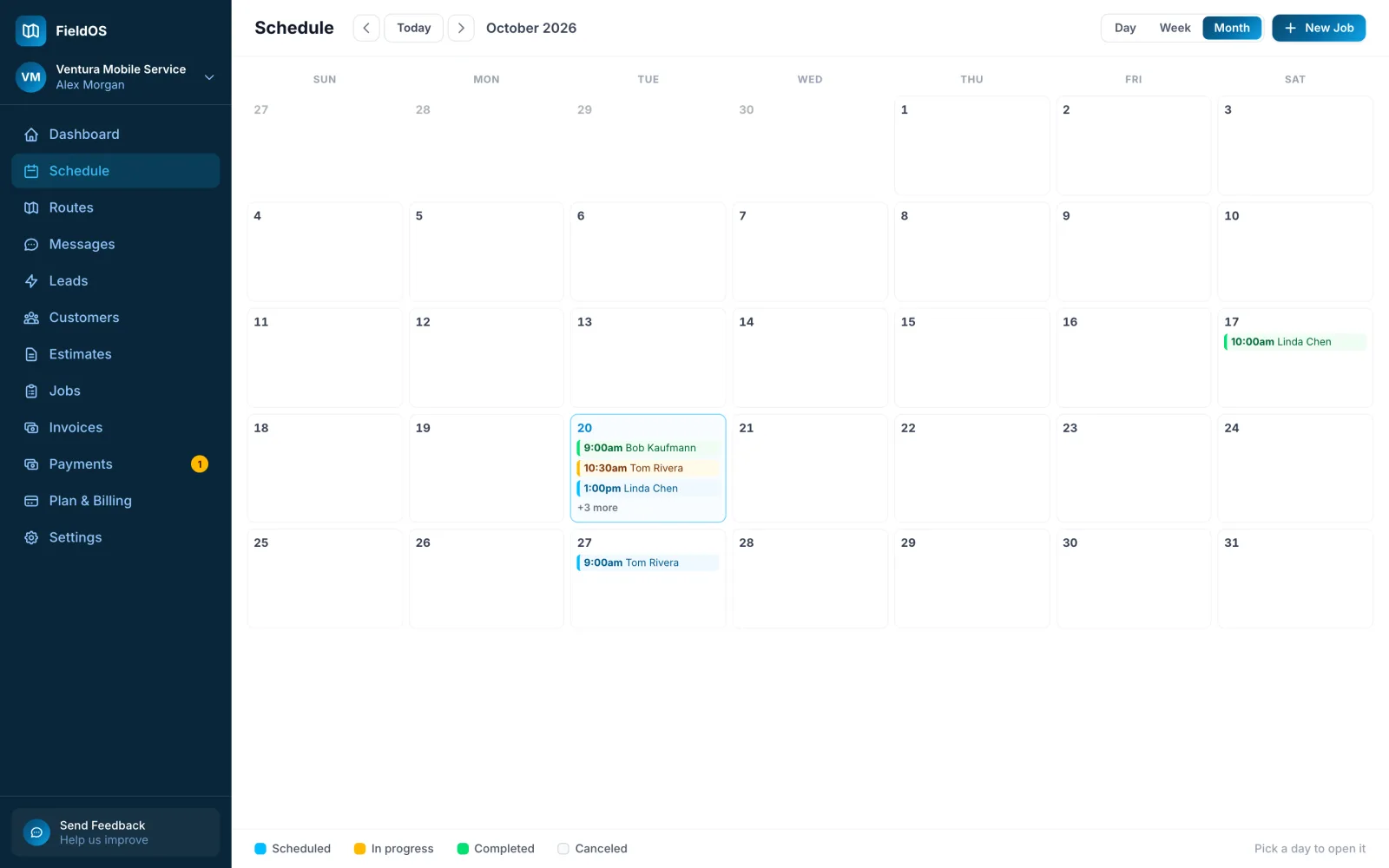
The schedule shows every visit, coloured by status: scheduled, in progress, completed or canceled.
- In the sidebar, click Schedule.
- Switch between Day, Week and Month. The arrows move back and forward, and Today comes back to now.
- To move a visit, drag it to a new time or day. In Month, click a day to open it.
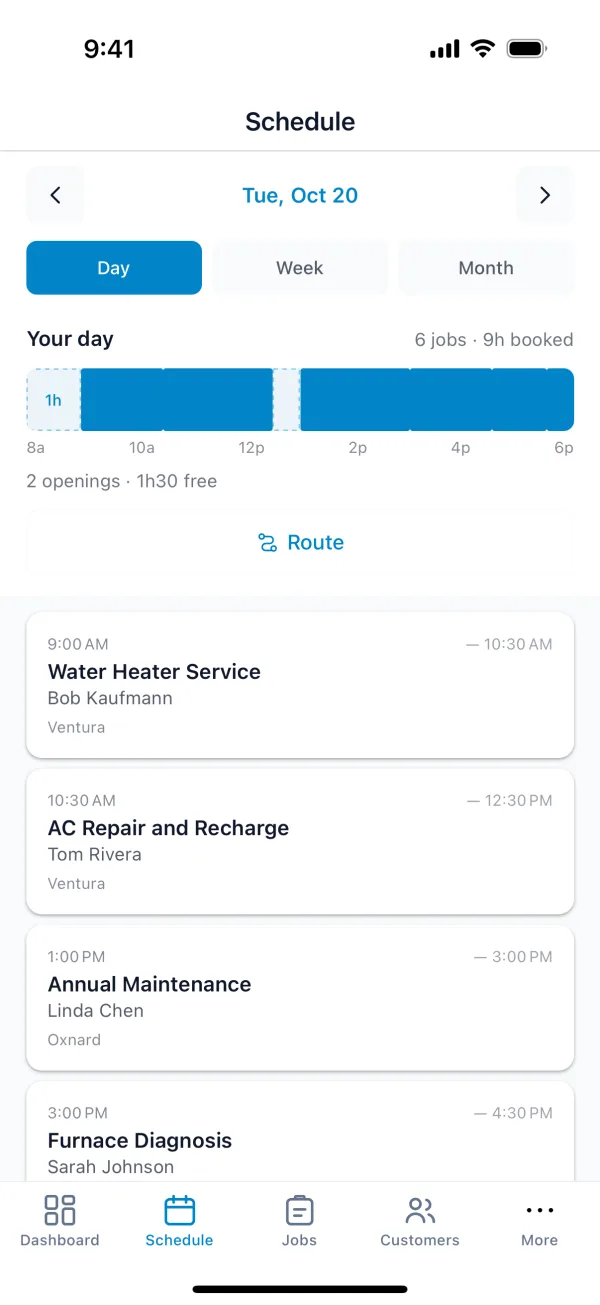
- Tap Schedule.
- Switch between Day, Week and Month, and use the arrows to move between dates.
Your day at the top shows how much of the day is booked, and how much open time is left.
To open a visit's job, click or tap the visit. To find a free slot for a job instead of picking one by eye, see Find a time.