Customer approval
The link you send opens the estimate on the customer's phone or computer. They don't need an account.
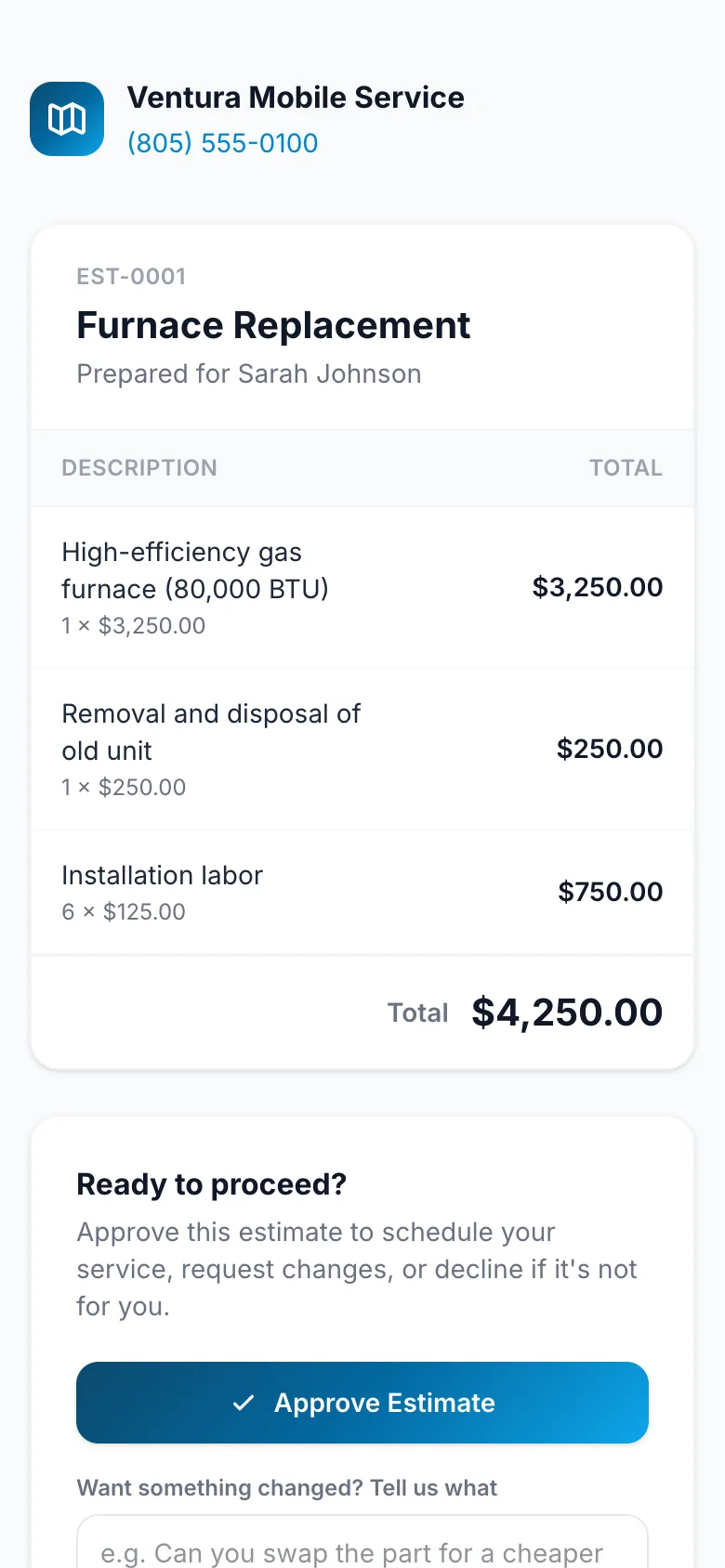
They can:
- Approve Estimate, which marks it Approved.
- Request Changes, with a note saying what they'd like changed. You'll see their note on the estimate. Edit it and use Resend to Customer.
- Decline, which marks it Declined.
If they say yes on the phone or in person instead, click Mark Approved (or Mark Declined) yourself.
Turn it into a job
When an estimate is approved, click Create Job on it. The job takes the estimate's customer and line items, ready to schedule.
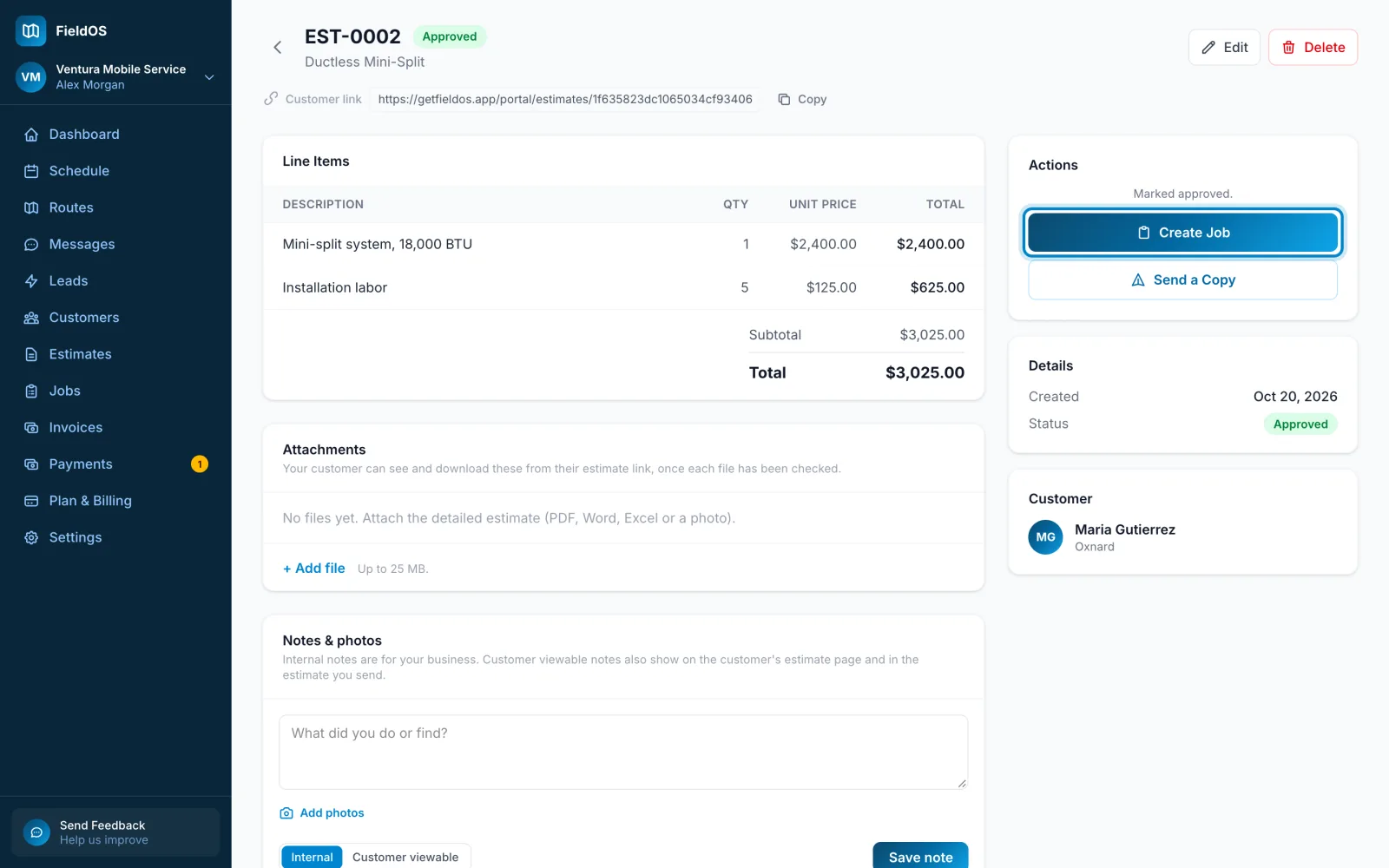
On the phone, open the approved estimate and tap Create Job.