Create and send an invoice
An invoice bills a job. It starts with the job's line items, and any deposit or progress payment already requested is taken off the total. (To bill part of a job, see Request payment.)
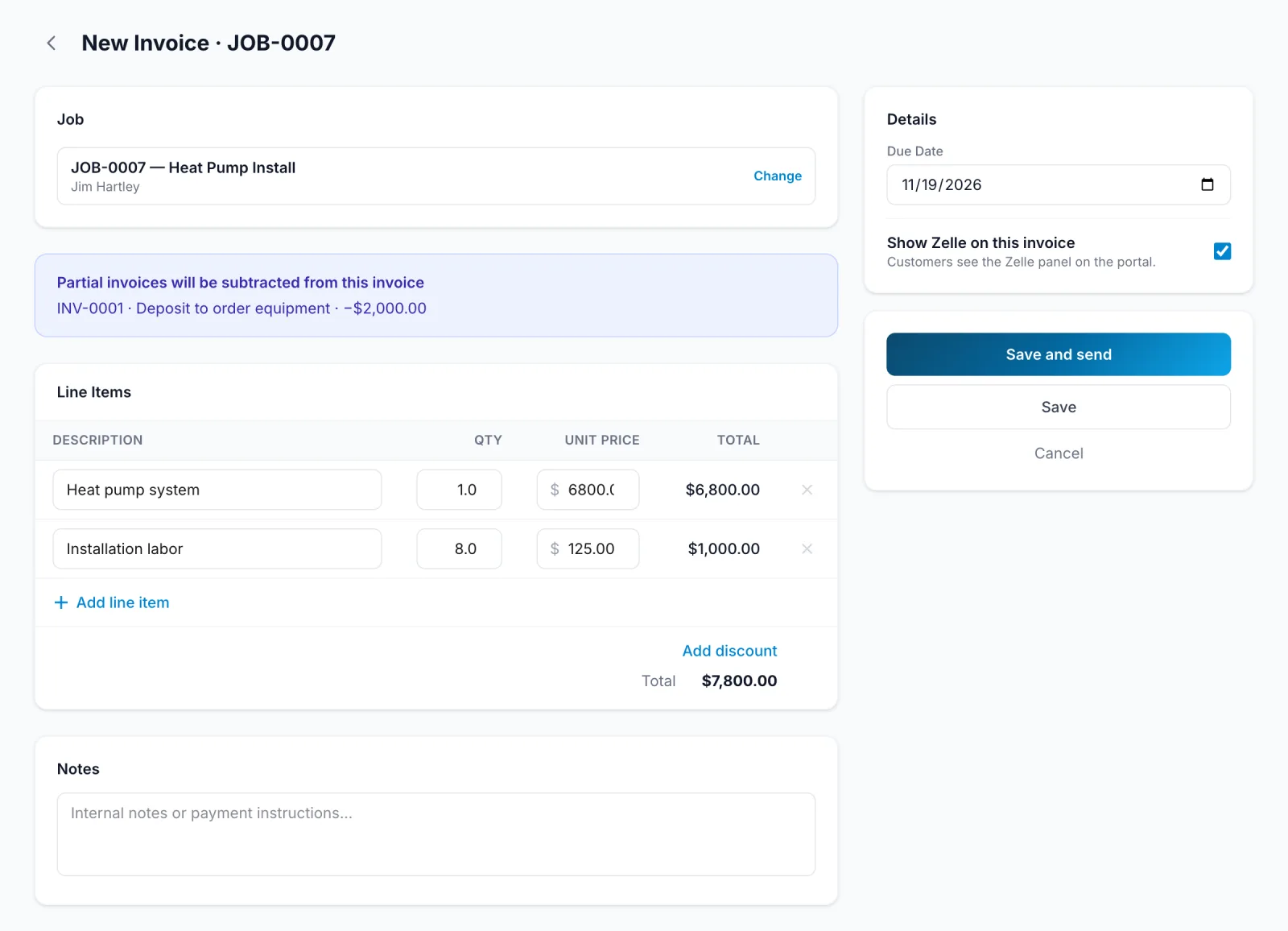
- In the sidebar, click Invoices, then New Invoice, and pick the Job.
- Check the Line Items, and set a Due Date.
- Click Save and send to send it now, or Save to send later.
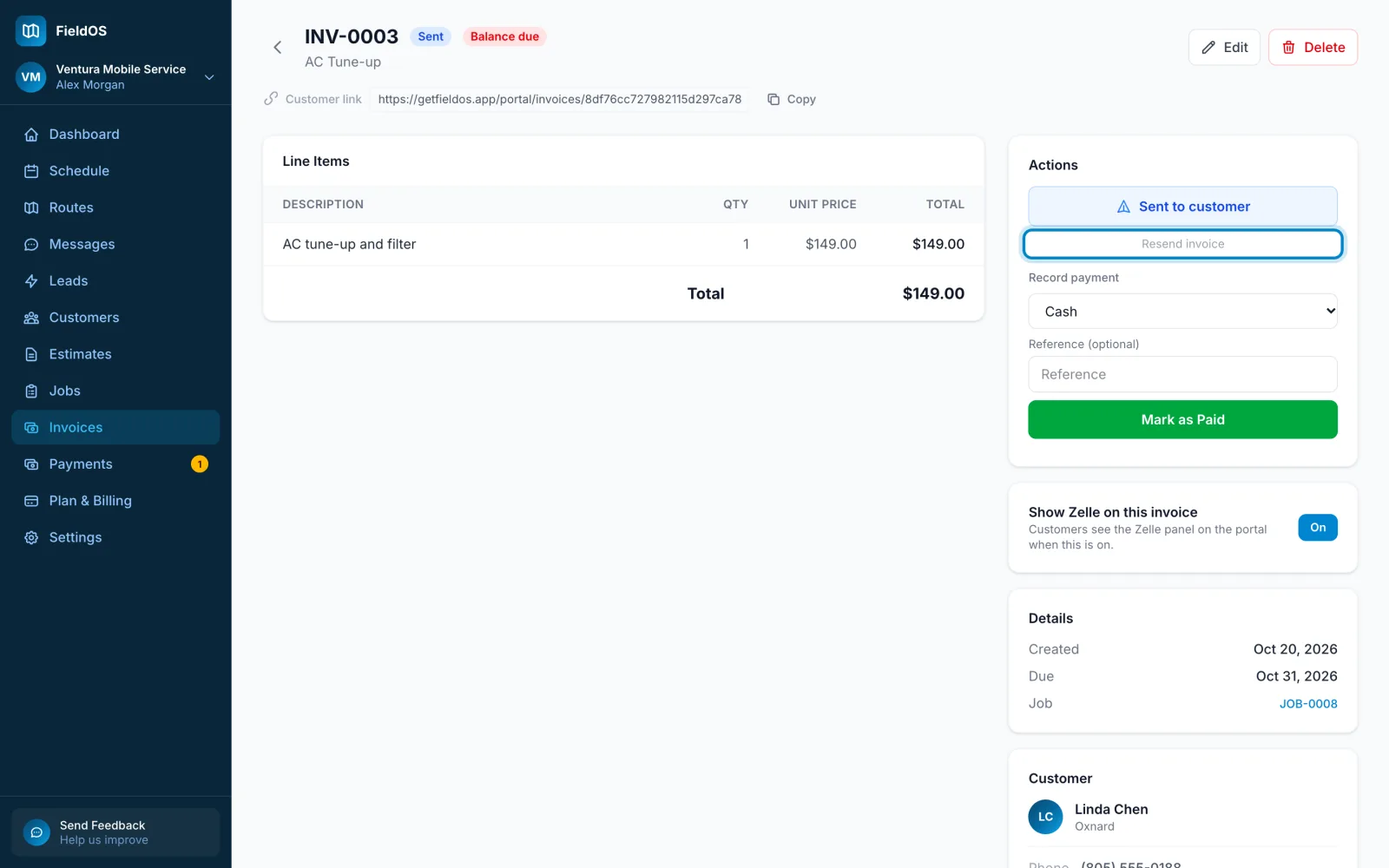
To send a saved invoice, open it and click Send to Customer.
- Tap More, then Invoices, then New invoice, and pick the Job.
- Check the lines and the due date, then save and send it.
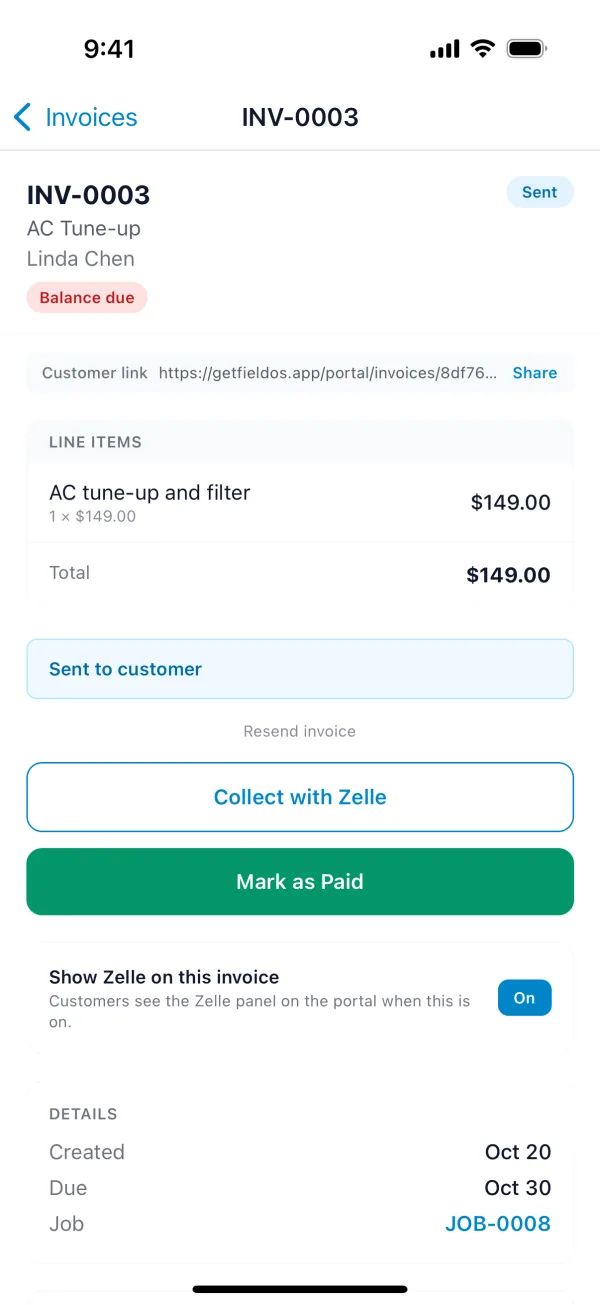
The customer gets a text if they have a phone number and accept texts, and an email otherwise. On the Free plan, sending opens your own messaging app with the link filled in. The link opens their invoice, where they can pay by card or Zelle, if you've set those up.