Recurring jobs
A recurring job repeats on a schedule you choose: daily, weekly, every two weeks, monthly, or a custom rule. FieldOS creates each occurrence as its own job, up to three months ahead, and keeps adding more as time goes on.
- In the sidebar, click Jobs, then New Job, and fill in the job as usual (see Create a job).
- Under Scheduling, tick Repeat this job.
- Choose when it Starts on and its Frequency. To stop it, set an End Date or Max Occurrences; leave both blank to keep it going.
- Click Create Job.
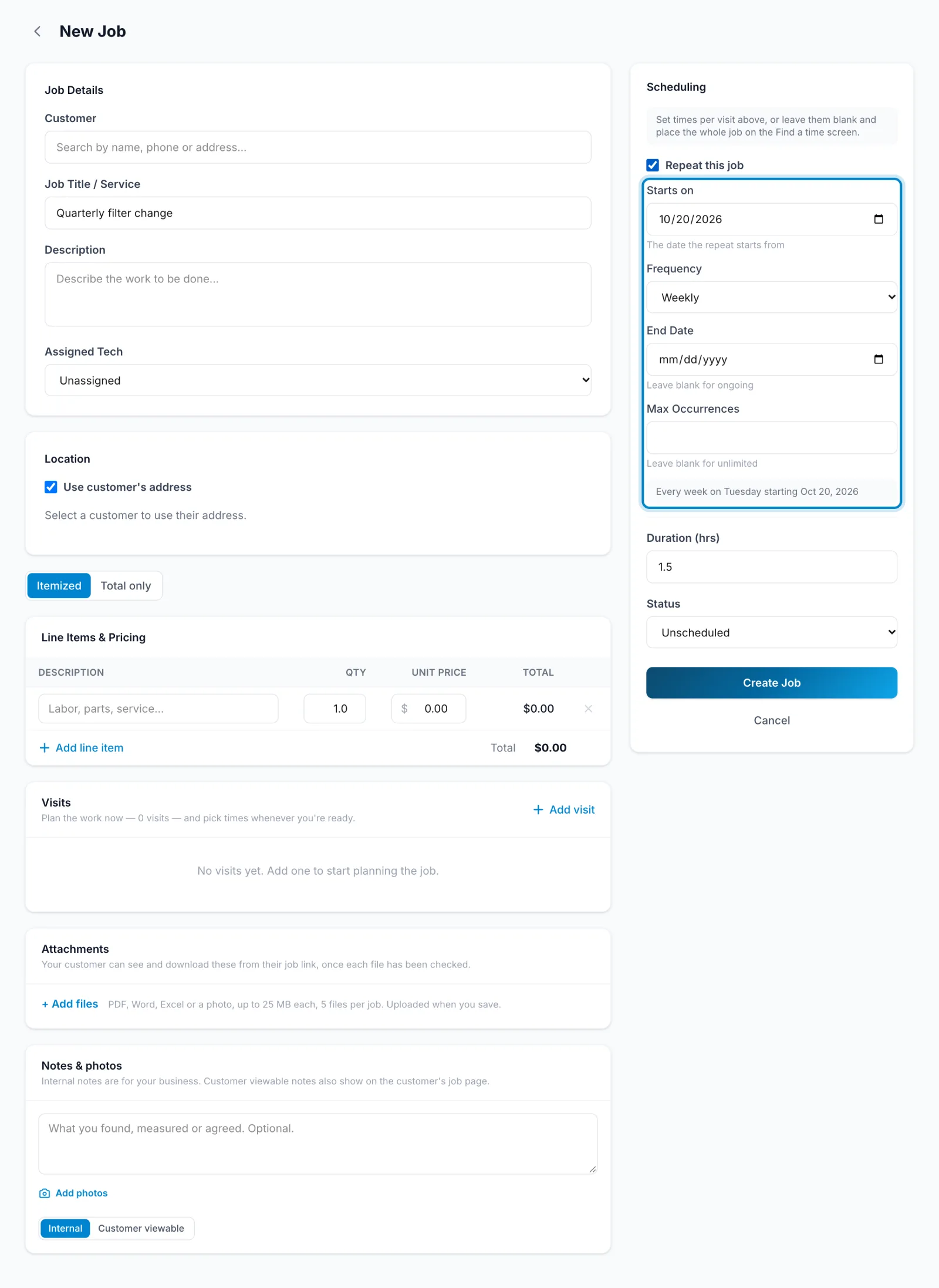
You can also tick Repeat this job when you edit a job that doesn't repeat yet.
You need a connection for this.
- Tap More, then Recurring series, then New.
- Pick the Customer, give it a Title, and check the Address.
- Set when it Starts and how often it Repeats.
- Tap Create series.
Pick the time once
The schedule sets which days the work falls on, not the time of day. FieldOS opens Find a time for the first occurrence. Place its visit, then click the Schedule all … at this time button (it shows how many), and every other occurrence is booked at the same time. If some of them clash with other work or fall outside your hours, FieldOS lists them first, and you can schedule them anyway.
On the phone, open an occurrence and schedule its visit in Find a time. FieldOS then asks whether to book the others at the same time: tap Schedule all … at this time. This needs a connection.
Change, pause or end it
Open any occurrence and click how often it repeats, next to its title (for example Monthly), to see the whole series. On the phone, tap the same chip on the job, or find the series under More > Recurring series.
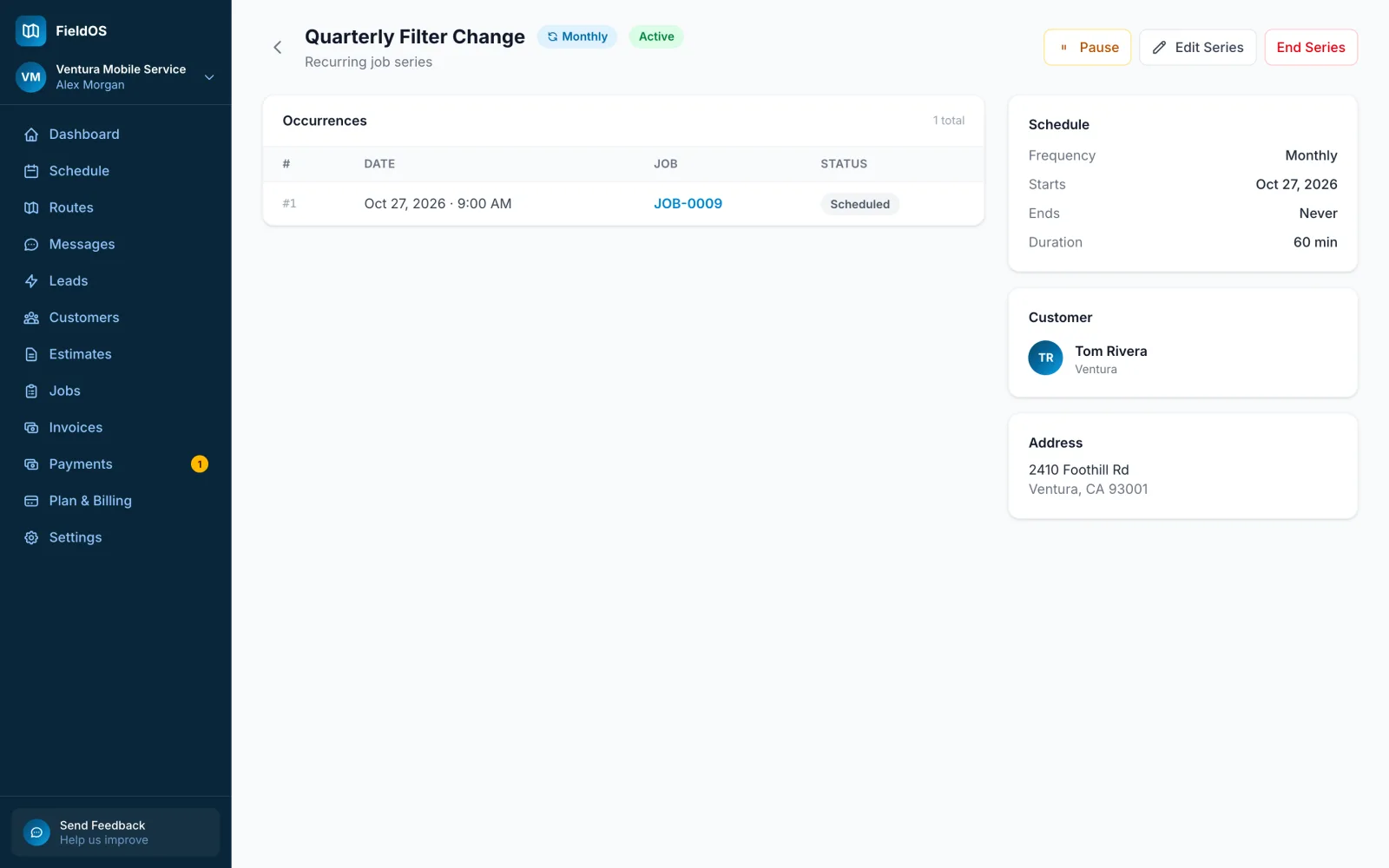
- Edit Series changes the details or the schedule. Saving replaces the future occurrences that haven't started yet.
- Pause stops new occurrences being created; Resume starts them again.
- End Series cancels the future occurrences that haven't started. Past and in-progress work isn't touched.
Each occurrence is still a normal job: you can reschedule it, add notes, and invoice it on its own.