Label leads and customers
Labels are your own groups for leads and customers: Commercial, Maintenance plan, Spanish speaker, whatever helps you. Each has a color, so you can spot it in a list. Anyone on your team can add them, and customers never see them.
- Open the customer or lead and click Label at the top of the page.
- Tick the labels you want. Each tick saves straight away.
- To make a new one, type its name and click Create "…".
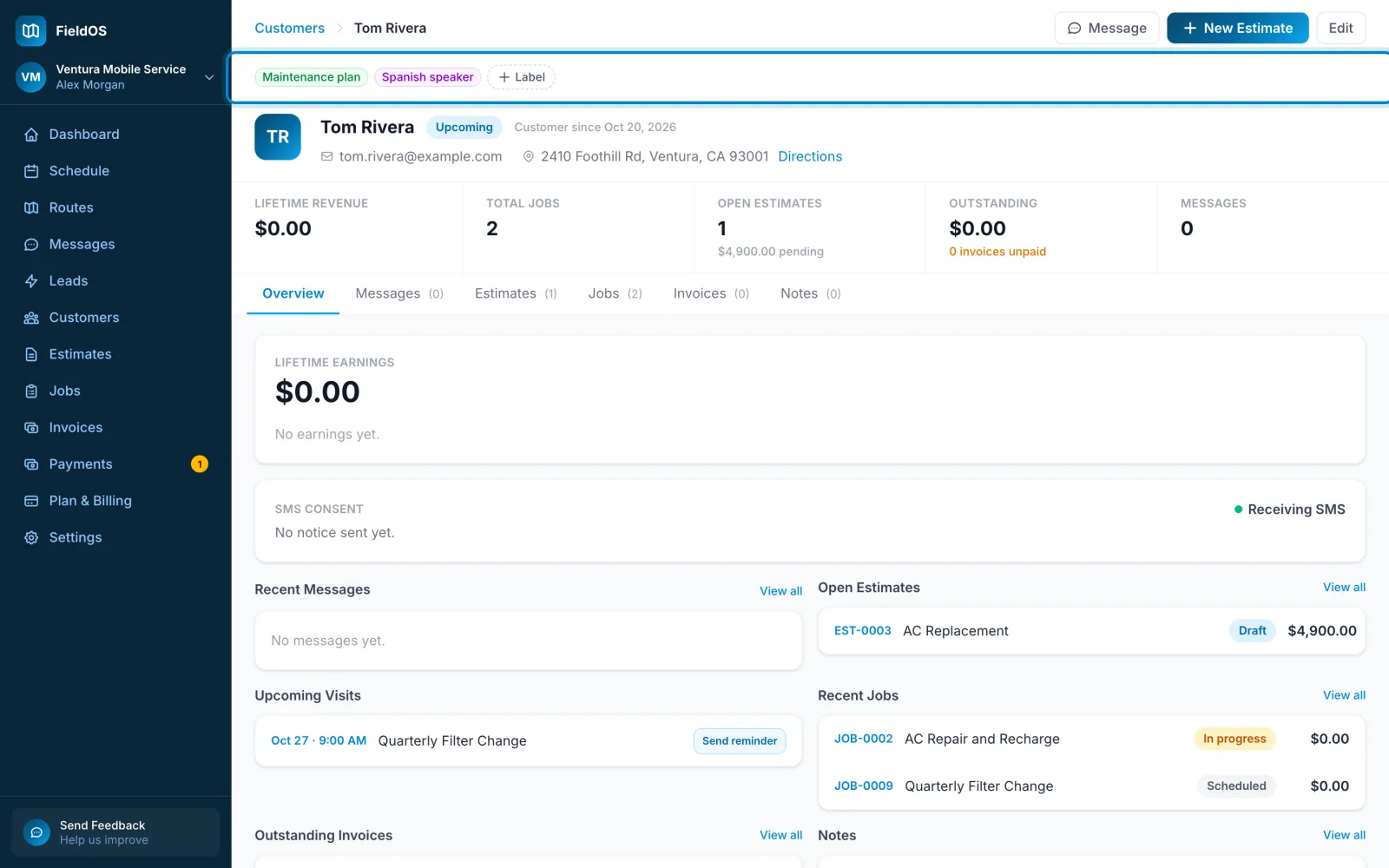
You can also pick labels on the New Customer and New Lead forms.
To see only some customers or leads, click Label beside the filters at the top of the list and tick one or more. The list shows everyone with any of them.
- Open the customer or lead and tap + Label (or Labels).
- Tick the labels you want, then tap Done.
- To make a new one, type its name and tap Create "…".
Ticking labels works without a connection; it's sent when you're back online. Making a new label needs a connection.
You can also pick labels on the New customer and New lead screens. To see only some customers or leads, tap labels in the row above the list.
Click Manage labels at the bottom of the label list, or go to getfieldos.app/labels. Change a label's name or color and click Save, or click Delete to take it off everyone who has it.
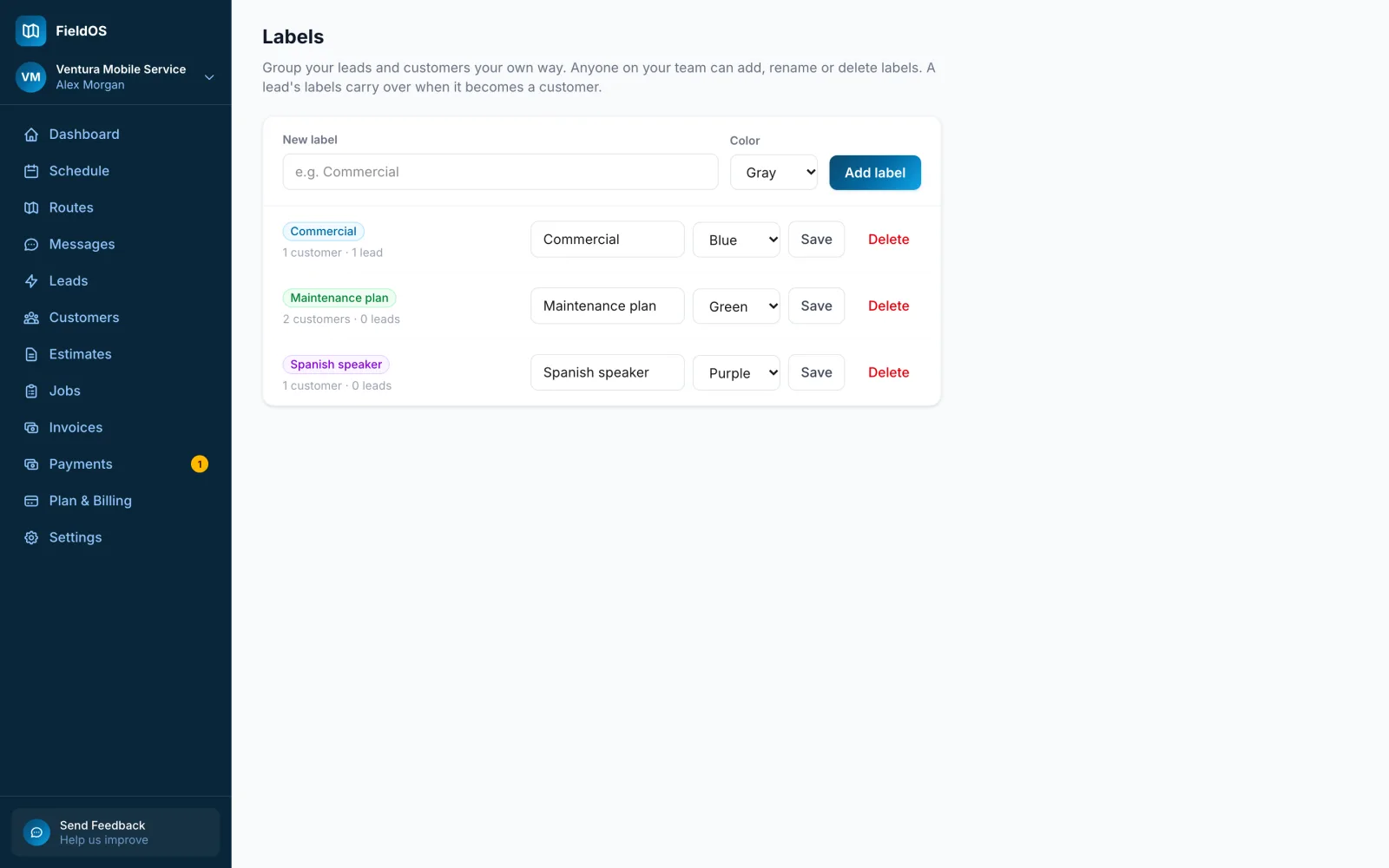
Tap More, then Labels. Tap a label to rename it or change its color, or tap Delete. This needs a connection.
When a lead becomes a customer
The customer gets the lead's labels, and keeps any labels of their own. See Convert a lead.
Importing customers? A Tags or Labels column in your file turns into labels too; see Import customers.